Buy Windows 11 Product Key

Pick the Windows 11 edition your PC runs, understand how retail and OEM licenses differ, and see exactly what each license allows before you buy. Then compare current offers from independent sellers; every key comes with plain-English activation instructions here.

  • Listed offers from $28.99
  • Compare offers from independent sellers; purchases are completed on the seller's website
  • Free step-by-step activation guides

Choose your Windows 11 key

Compare Windows 11 Home and Pro retail keys, and learn how retail and OEM licensing differ. Each key activates genuine Windows 11 on one PC. Home or Pro must match the edition you run (or want to upgrade to). Retail or OEM decides whether the license can generally move to a new PC later.

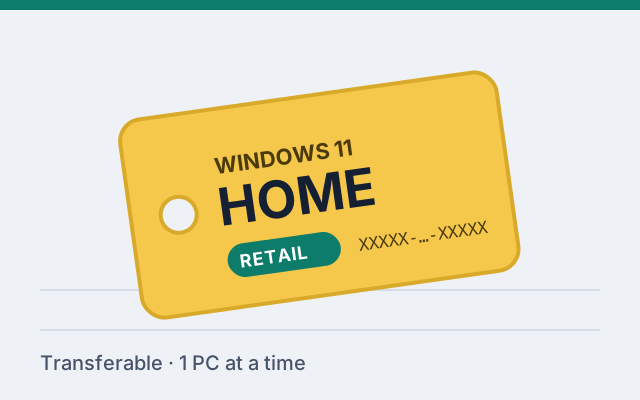
Windows 11 HomeRetail license

Windows 11 Home Retail Key

For personal PCs that run Windows 11 Home. Generally transferable to a new PC when you replace yours.

Edition
Windows 11 Home
License
Retail
Delivery
Digital delivery by the seller
Activation
Online, in Windows Settings

No verified offers currently listed

View Windows 11 Home Retail Key

Purchases, delivery and refunds are handled by the seller you choose, under its own terms. Prices and availability may change. Confirm the current price and product details on the seller's website before purchasing. See our terms of use.

Windows 11 Home vs Pro: side by side

Features come from the edition; flexibility comes from the license type. This table shows both.

AttributePro RetailHome Retail
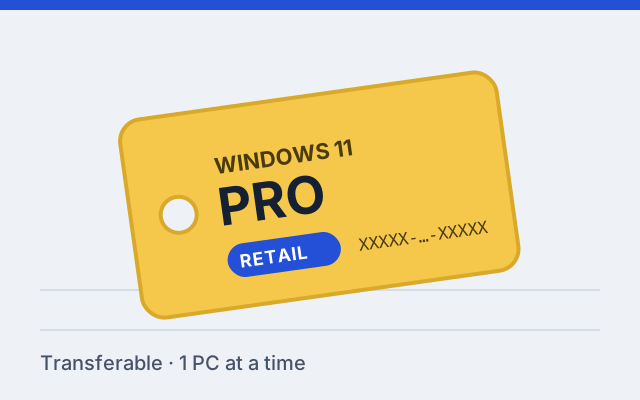
Windows editionWindows 11 ProWindows 11 Home
License typeRetailRetail
Devices1 PC at a time1 PC at a time
Moving to a new PCGenerally, after it's removed from the old PCGenerally, after it's removed from the old PC
Purchase supportThe sellerThe seller
DeliveryDigital delivery by the sellerDigital delivery by the seller
Typical useSelf-built PCs and anyone who upgrades hardwareHome PCs, laptops, students and gaming rigs
OffersBest offer $28.99
Compare offers
No verified offers currently listed

How buying a key works

  1. Choose your edition

    Check Settings › System › About to see whether your PC runs Home or Pro, then pick the matching key.

  2. Compare offers

    Compare the listed offers for that key and continue to the seller you choose, where the order and payment are completed.

  3. Receive it digitally

    The seller delivers the 25-character key digitally after payment. Keep it somewhere safe.

  4. Activate Windows

    Open Settings › System › Activation › Change product key and enter the 25 characters.

Not sure which Windows 11 key you need?

Your key has to match your Windows 11 edition. To see which one you have:

  1. Open Settings (press Windows + I).
  2. Go to System › About.
  3. Under Windows specifications, read the Edition line.

Home needs a Home key. Pro needs a Pro key. A Pro key also works on Home, where it upgrades the PC to Pro.

Check Your Windows Edition

Activating your key

Once you have your key:

  1. Open Settings › System › Activation.
  2. Next to Change product key, select Change.
  3. Type the 25-character key and select Next, then Activate.

You'll need an internet connection. Activation normally completes in under a minute.

Read the complete activation guide

Buying and activating: common questions

How is the key delivered?

Digitally, by the seller you buy from, which completes the purchase and delivers the 25-character key after payment. Nothing is shipped. This site compares offers and explains how to activate; it does not take payments or hold keys.

Which key do I need: Home or Pro?

Match the edition shown in Settings › System › About. If you run Home and want Pro features, buy a Pro key; it upgrades Home to Pro without reinstalling. See Home vs Pro.

What's the difference between retail and OEM?

Both activate the same Windows 11. A retail license can generally be moved to a new PC later, subject to Microsoft's licensing and activation rules; an OEM license stays with the first PC it activates and is supported by the system builder rather than Microsoft. Full comparison.

Can one key activate more than one PC?

No. Each key licenses one PC at a time. You need one key per computer.

Do I need to reinstall Windows?

No. You enter the key in Settings on the Windows 11 you already have. The only time you'd reinstall is if you want a clean installation for other reasons.

Will my PC get Windows updates after activation?

Yes. An activated Windows 11 receives the same feature and security updates through Windows Update as any other.

What if the key doesn't activate?

Most failures are an edition mismatch or a typing error. Our troubleshooting guide covers the fixes. If it still fails, contact the seller's support, which handles orders, replacements and refunds for keys it sold, with your order number and the error code.

Are you affiliated with Microsoft?

No. Buy Windows11 Product Key is an independent seller. Windows is a trademark of Microsoft Corporation.